

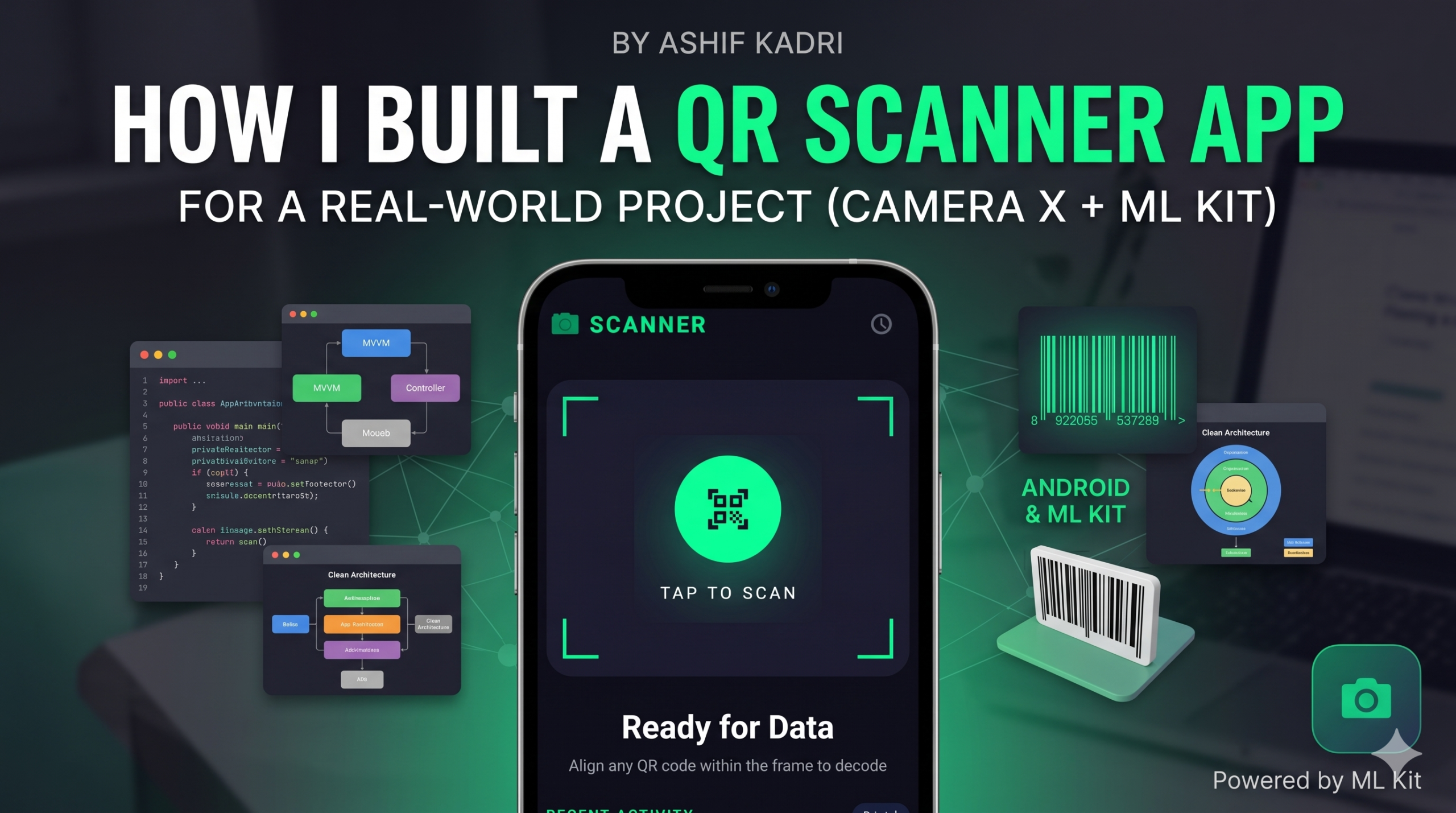
How I Built a QR Scanner App for a Real-World Project (Android + ML Kit)
By Ashif Kadri | Android & Flutter Developer
When my company needed a robust QR scanner feature for one of our internal enterprise projects, I faced a classic developer dilemma: do I implement a quick, third-party wrapper library, or do I build the implementation from scratch?
After evaluating the project’s long-term maintenance needs, I decided to build our custom solution using Jetpack CameraX and Google’s ML Kit. Honestly, it was one of the best technical decisions I have made. Not only did it eliminate external dependencies, but it also gave us a highly optimized, modular, and deeply integrated scanning experience.
Here is the comprehensive breakdown of how I designed, architected, and built a production-ready QR scanner in just 2 to 3 days.
Why I Built It from Scratch
It is always tempting to drop in a ready-made, open-source library and call it a day. However, when building for production—especially within an enterprise environment—relying on unverified third-party libraries introduces significant trade-offs:
-
Lack of UI Flexibility: Many legacy scanning libraries force you into a rigid, pre-built XML overlay. Modern applications require seamless UI integration, such as custom Jetpack Compose bounding boxes, animated scanning lines, and native material design handling.
-
Performance Bottlenecks: Off-the-shelf wrappers often lack optimization for modern camera APIs, leading to sluggish frame rates, excessive battery consumption, or slow barcode recognition.
-
Control Over Lifecycle and Hardware: Real-world usage requires precise handling of hardware variables, including low-light environments (torch control), tap-to-focus configurations, and strict adherence to lifecycle states to prevent memory leaks and application crashes.
By leveraging Google’s official Jetpack CameraX and ML Kit APIs directly, we gained full control over the execution pipeline while ensuring native, lightweight execution.
The Production Tech Stack
To ensure the scanning module remained maintainable, scalable, and testable, I utilized a modern Android development stack:
-
Language: Kotlin (leveraging structured concurrency via Coroutines and Flows)
-
UI Framework: Jetpack Compose (for a fully declarative, reactive user interface)
-
Camera Framework: CameraX (providing lifecycle-aware camera management)
-
ML Engine: Google ML Kit Barcode Scanning (offering optimized, on-device machine learning inference)
-
Architecture: MVVM + Clean Architecture principles
-
Dependency Injection: Hilt (for modular, decoupled dependency provision)
Architectural Blueprint
Before diving into the implementation, it is vital to understand how data flows through the application. The system relies on a decoupled, reactive pipeline where CameraX captures the physical environment frame by frame, processes the raw image stream via an analyzer, passes it to the ML Kit processing engine, and dispatches the decoded string back up to the UI layer through a clean, single source of truth.
Deep Dive: Connecting CameraX to ML Kit
The primary challenge when building a custom scanner is bridging the gap between raw hardware frames and the machine learning engine. CameraX provides an ImageAnalysis.Analyzer use case explicitly for this purpose.
The analyzer intercepts the camera stream, extracts individual frames as an ImageProxy, converts them into a format readable by ML Kit (InputImage), and processes them asynchronously.
Here is the production-grade implementation of the core analysis pipeline:
Kotlin
package com.example.qrscanner.analyzer

import androidx.camera.core.ExperimentalGetImage
import androidx.camera.core.ImageAnalysis
import androidx.camera.core.ImageProxy
import com.google.mlkit.vision.barcode.BarcodeScanning
import com.google.mlkit.vision.barcode.common.Barcode
import com.google.mlkit.vision.common.InputImage

class QRAnalyzer(
    private val onQRDetected: (String) -> Unit,
    private val onFailure: (Exception) -> Unit
) : ImageAnalysis.Analyzer {

    // Thread-safe initialization of the client optimized for QR/Barcodes
    private val scanner = BarcodeScanning.getClient()

    @ExperimentalGetImage
    override fun analyze(imageProxy: ImageProxy) {
        // Extract the media.Image safely from the proxy wrapper
        val mediaImage = imageProxy.image
        if (mediaImage == null) {
            imageProxy.close()
            return
        }

        // Construct the input image wrapper incorporating current rotation properties
        val image = InputImage.fromMediaImage(
            mediaImage,
            imageProxy.imageInfo.rotationDegrees
        )

        scanner.process(image)
            .addOnSuccessListener { barcodes ->
                // Look for the first valid recognized barcode format
                val primaryBarcode = barcodes.firstOrNull()
                primaryBarcode?.rawValue?.let { qrValue ->
                    onQRDetected(qrValue)
                }
            }
            .addOnFailureListener { exception ->
                onFailure(exception)
            }
            .addOnCompleteListener {
                // CRITICAL: Always release the proxy frame to prevent camera pipeline freezing
                imageProxy.close()
            }
    }
}
Critical Implementation Takeaways:
-
Image Close Lifecycle: The
imageProxy.close()call within theaddOnCompleteListenerblock is absolutely mandatory. CameraX maintains a fixed buffer pool of frames. If you fail to explicitly close anImageProxy, the pipeline will stall, starving the system of frames and causing the camera preview to freeze permanently. -
Thread Concurrency: ML Kit performs inference asynchronously on an internal background thread pool, meaning it will not block the main UI thread during processing loops.
Implementing the Camera Preview in Jetpack Compose
Integrating an imperative, surface-driven API like CameraX inside a declarative UI framework like Jetpack Compose requires a bridging component. We achieve this by using AndroidView to host a traditional PreviewView, linking its lifecycle directly to the Composable composition tree.
Kotlin
@Composable
fun ScannerPreviewScreen(
    onQrCodeScanned: (String) -> Unit,
    viewModel: ScannerViewModel = hiltViewModel()
) {
    val context = LocalContext.current
    val lifecycleOwner = LocalLifecycleOwner.current
    val cameraProviderFuture = remember { ProcessCameraProvider.getInstance(context) }

    Box(modifier = Modifier.fillMaxSize()) {
        AndroidView(
            factory = { ctx ->
                PreviewView(ctx).apply {
                    scaleType = PreviewView.ScaleType.FILL_CENTER
                    implementationMode = PreviewView.ImplementationMode.PERFORMANCE
                }
            },
            modifier = Modifier.fillMaxSize(),
            update = { previewView ->
                cameraProviderFuture.addListener({
                    val cameraProvider = cameraProviderFuture.get()

                    // Configure the visual Preview use case
                    val preview = Preview.Builder().build().also {
                        it.setSurfaceProvider(previewView.surfaceProvider)
                    }

                    // Configure the background Analysis use case
                    val imageAnalysis = ImageAnalysis.Builder()
                        .setBackpressureStrategy(ImageAnalysis.STRATEGY_KEEP_ONLY_LATEST)
                        .build()
                        .also { analysis ->
                            analysis.setAnalyzer(
                                ContextCompat.getMainExecutor(context),
                                QRAnalyzer(
                                    onQRDetected = { result ->
                                        onQrCodeScanned(result)
                                    },
                                    onFailure = { error ->
                                        Log.e("QRAnalyzer", "Inference error: ${error.message}")
                                    }
                                )
                            )
                        }

                    try {
                        // Ensure clean re-binding state by unbinding previous links
                        cameraProvider.unbindAll()

                        // Bind the lifecycle-aware components to the hosting view lifecycle
                        cameraProvider.bindToLifecycle(
                            lifecycleOwner,
                            CameraSelector.DEFAULT_BACK_CAMERA,
                            preview,
                            imageAnalysis
                        )
                    } catch (exc: Exception) {
                        Log.e("ScannerPreview", "Binding use cases failed", exc)
                    }
                }, ContextCompat.getMainExecutor(context))
            }
        )

        // Add custom overlay components (like target crosshairs or scanning animations) here
        ScannerOverlay()
    }
}
Architectural Integration & Best Practices
To fit an enterprise application model, this scanning component should not exist in isolation. Adhering to Clean Architecture principles allows for better separation of concerns:
├── domain
│   └── model
│       └── ScanResult.kt
├── data
│   └── repository
│       └── ScanRepositoryImpl.kt
└── presentation
    ├── ui
    │   └── ScannerPreviewScreen.kt
    └── viewmodel
        └── ScannerViewModel.kt
By decoupling scanning logic from data transformations, the business application layers remain agnostic of how data is obtained—whether from a live hardware stream, a local image file, or a hardware scanner accessory.
Key Technical Lessons Learned
Developing this module for a production app highlighted several essential edge cases:
1. Robust Lifecycle Management
Camera hardware is a shared, limited system resource. If an app fails to release camera hooks during background pausing, the operating system may force-terminate the process, or subsequent apps will fail to initialize camera frames. CameraX handles much of this naturally when bound to a LifecycleOwner, but you must configure your background workers cleanly to handle abrupt disruptions.
2. Backpressure Optimization
In the analysis configuration, setting ImageAnalysis.STRATEGY_KEEP_ONLY_LATEST is essential for performance. If the ML inference engine takes longer to process a frame than the camera takes to deliver a new one, this strategy discards intermediate frames, keeping only the freshest image buffer. This prevents a backlog of stale frames, lowering memory footprints and keeping the UI perfectly responsive.
3. Handling Environmental Variables
Real-world hardware scans happen in sub-optimal environments—under poor warehouse lighting, on reflective surfaces, or at steep physical angles. Implementing tap-to-focus and manual torch controls via CameraX’s CameraControl utility significantly improves scanning success rates across varying field conditions.
Summary of Results
Building this engine from scratch delivered a highly performant, flexible module that met all our criteria:
-
Universal Decoding: Processes multiple barcode formats natively (QR, DataMatrix, Aztec, UPC, EAN, Code 128) completely on-device.
-
Zero License Friction: Eliminates commercial or copyleft third-party license compliance concerns.
-
Optimized Resource Footprint: Added negligible binary weight to our distributed APK file compared to heavy external cross-platform packages.
You can view the source patterns, complete UI configurations, and modular dependency setups on GitHub: 👉 ModernQRScanner
Frequently Asked Questions
Q: Is Google ML Kit completely free to run?
A: Yes, Google ML Kit’s Barcode Scanning API is entirely free for Android developers, with no monthly active user caps or cloud billing requirements.
Q: Does ML Kit require a live internet connection to parse images?
A: No. ML Kit’s scanning engine executes completely on-device via a local machine learning bundle, making it perfect for offline enterprise applications or remote usage.
Q: Why choose CameraX over the older Camera2 API framework?
A: Camera2 offers deep, granular hardware access but requires thousands of lines of boilerplate code to handle device-specific bugs and aspect ratios. CameraX abstractly handles device compatibility across 99% of Android devices while cleanly aligning with lifecycle architecture.
Q: Can this implementation parse multiple QR codes within the same frame simultaneously?
A: Yes. The list returned by
barcodesin the success listener contains all detected barcodes within that image matrix frame. You can easily loop through the entire collection to handle batch scanning.Internal Recommended Reads